
How a project moves through JobZio.
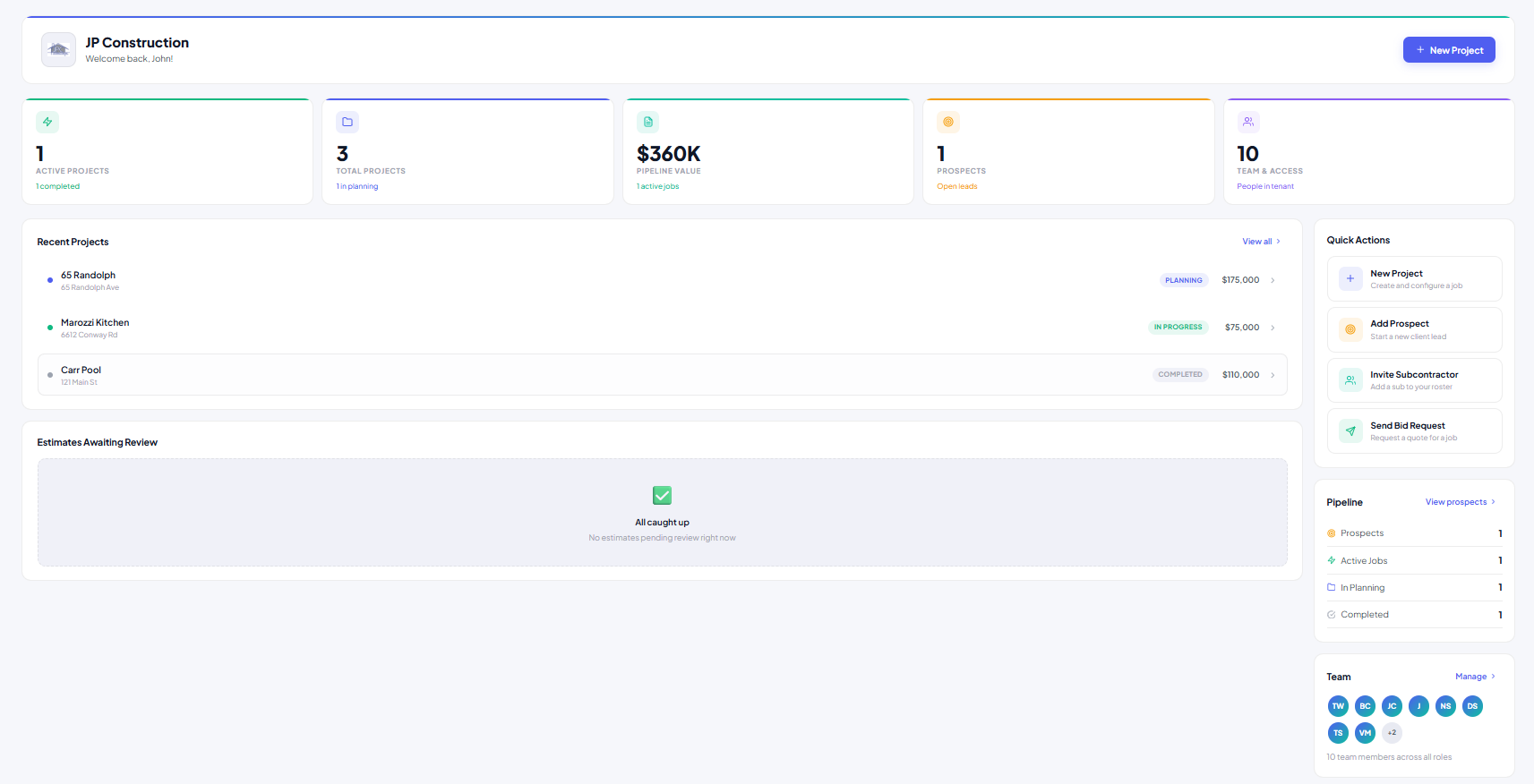
From setup through closeout, JobZio is designed to keep project data, people, bids, files, schedules, and updates connected.
Project setup
Create a job, add owner/client information, assign PMs, and define project type.
Plan distribution
Upload plans, specs, and files, then select trades and subcontractors to notify.
Bid coordination
Subs submit initial bids or change orders; contractors review, accept, reject, or request revision.
Construction execution
Manage schedules, task dependencies, inspections, comments, photos, and delays.
Client visibility
Share approved updates, milestone progress, photos, and client-visible notes.
Closeout history
Preserve files, bids, photos, accepted changes, comments, and project completion records.
Standardize repeatable residential work.
Use project templates for common job types such as kitchen remodels, bathroom remodels, new builds, pool additions, ADUs, garage conversions, decks, and patios.
Comments, photos, and notes stay tied to the project.
Mockup notes can include PM updates, subcontractor questions, client-visible summaries, and internal-only comments.
Project Notes
Tub valve installed. Waiting on tile wall depth before final trim.
Electrical inspection moved to Thursday. Cabinet delivery remains Tuesday.
Project Closeout
| Item | Status |
|---|---|
| Final photos | Complete |
| Approved change orders | Archived |
| Subcontractor final files | Pending |
| Client handoff notes | Draft |
Keep a clean record of what happened.
Project closeout should not require digging through texts, inboxes, and random folders. JobZio is designed to preserve history by project.
Panel location conflicts with cabinet layout. Need confirmation before rough-in.